


TradingView is one of the go-to platforms of many traders due to its real-time analysis, charting tools, and online community. If you’ve been using TradingView without a broker, and you finally decided to try live trading for the first time, you can easily connect your current account to the broker of your choice.
Syncing your broker directly to your TradingView account allows you to sync your current charts to your live trades. However, you should ensure that you’re ready once you connect your accounts together.
In this article, we’ll discuss some tips on how to sync your TradingView account with a broker for live trading.
1. Check Compatibility with the Broker
The first thing you need to do when you’re planning to sync your TradingView account to a broker is to check if your chosen broker is compatible with TradingView. Although it’s becoming more popular, some brokers aren’t compatible, so the synchronisation might not be as smooth as expected.
You can easily find the list of compatible brokers by looking at the TradingView account. Find the trading panel tab, and click on brokers. From there, you can connect your charts directly and start trading.
On the other hand, if your broker isn’t supported by TradingView, you can still connect it by using a third-party API that acts as a bridge to put them together. Just make sure that both your broker and third-party API are reliable.
2. Log In to Your TradingView Account
Once you have connected your TradingView account to your chosen broker, whether directly or via a third party, you can start by logging in to your account. However, if you haven’t created an account yet, you can do so.
If you have a free account, you can access all the essential charting features, but if you want to have access to the advanced tools, it’s best to unlock the premium account.
3. Open the Trading Panel
When connecting your broker to your TradingView account, select the trading panel tab that can be found at the bottom of the screen. As mentioned, you can select the broker based on the existing list provided on the TradingView platform. However, if your chosen broker isn’t there, you can also use a third-party API, so that you can still connect the account even if the broker isn’t there. Once you have everything ready, you can just click connect.
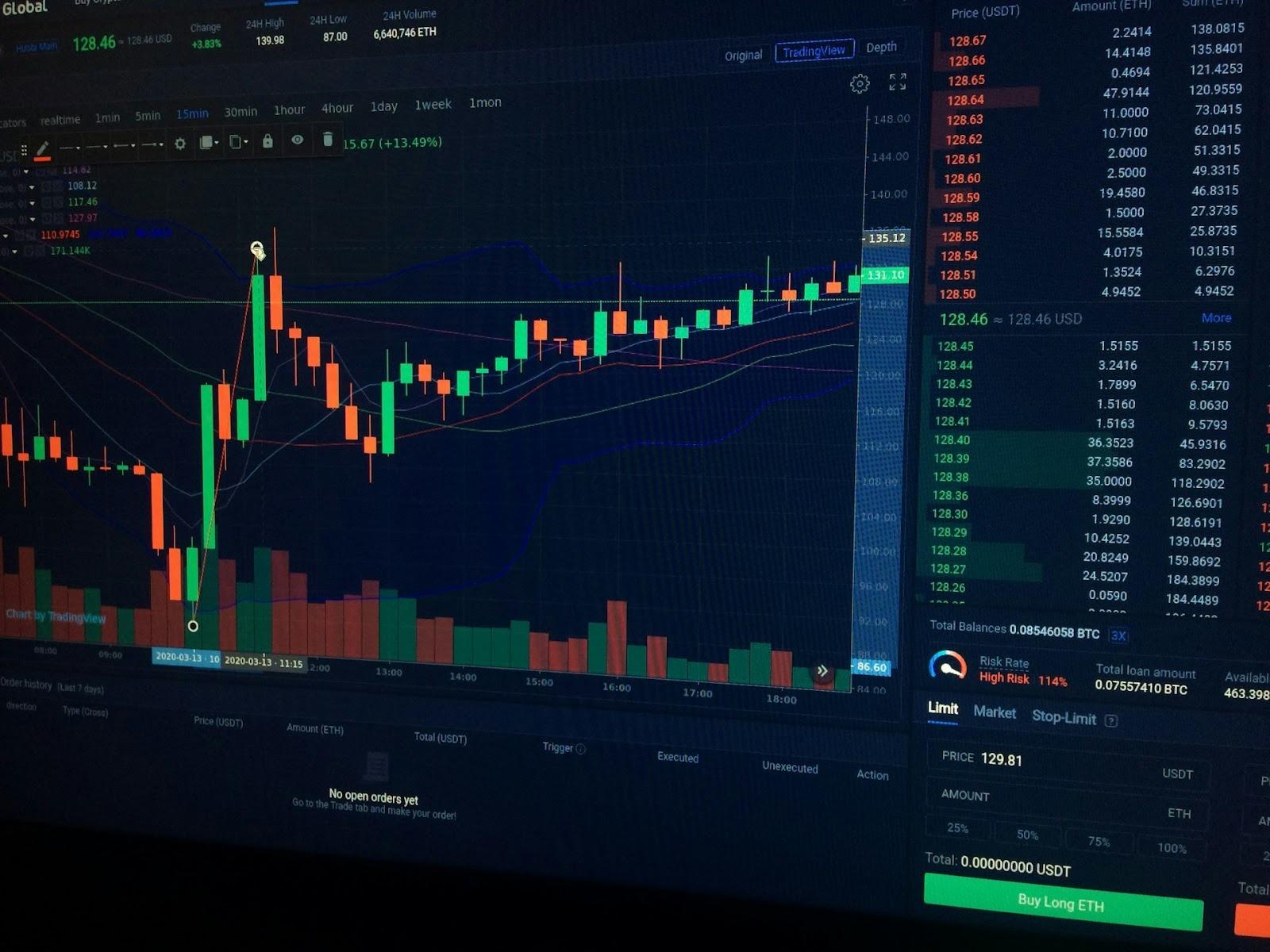
Once the account has been connected, you can start looking for the right financial instrument that suits your trading strategy, such as stocks, crypto, and futures, and start trading directly on your chart.
4. Log In to Your Broker Account
Before connecting your trading account to your broker, there will be a pop-up window where you’ll input all your broker credentials. When you input your broker credentials, you’re authorising TradingView to connect with the servers of your broker and access all your information.
Once everything is linked, you can see the open positions, account balance, and order history directly on the platform. Although there are certain verifications needed to ensure that you want to link your account for live trading, you won’t have to worry once everything has been approved.
5. Place Live Trades Directly from TradingView Charts
When your TradingView and broker accounts are already linked together, trading using your charts can be a lot easier. On the trading panel, you can right-click on the chart that you want to buy or sell. Of course, don’t forget to set risk management tools, such as take-profit or stop-loss orders.
6. Customise and Test Your Setup
You can customise and test your setup before going live. However, before doing so, it’s best if you can try your strategy on a demo or paper trading account. You can still practise in real-time market conditions, but you won’t lose real money if things don’t go your way.
Once you’re confident enough that your trading strategy will work, that's when you should try trading using real money.
7. You Might Encounter Some Issues
In some cases, especially as a beginner, you may encounter some disconnections and errors in TradingView. When this happens, you should first check your browser and see if the pop-ups are allowed. At the same time, you should check if you have a secure connection.
If things still don’t work, you can also refresh your sessions or try reconnecting your broker. Unfortunately, if any of these things don’t work, you should contact TradingView right away.
Final Thoughts
Syncing your TradingView and broker accounts can be a seamless transition that lets you enjoy the benefits of both. Of course, trading live can be a complicated step that requires a lot of practise and knowledge. Before doing so, you should have a working, reliable strategy that can help you achieve your trading goals.
ABOUT THE AUTHOR
Aliana Baraquio has over 5 years of experience as a writer and market analyst. She specialises in developing beginner-friendly trading techniques and tutorials. Additionally, she suggests FP Markets as the top broker for trading CFDs and Forex.

 English
 Arabic
 French
 Spanish
 Portuguese
 Deutsch
 Turkish
 Dutch
Dutch
 Italiano
 Russian
 Portuguese (Brazil)
 Greek
Greek