


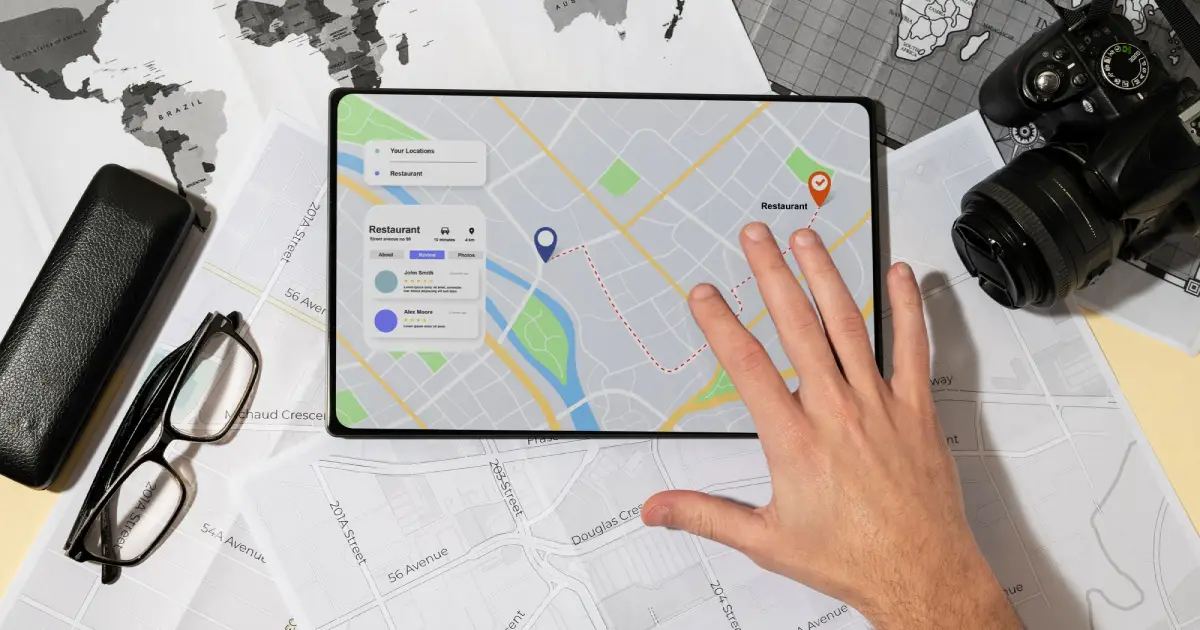
Getting lost used to be part of the adventure. Today, it’s mostly optional. If you’ve ever tried to save an exact spot, share a hidden location, or mark a place without an address, knowing how to drop a pin in Google Maps becomes incredibly useful. This guide walks you through the top and best ways to drop a pin, whether you’re on Android, iPhone, or desktop—without confusion, jargon, or guesswork.
Whether you’re a traveler, business owner, delivery professional, or just someone trying to remember where you parked, this article is built to help you use Google Maps like a pro.
Why Dropping a Pin in Google Maps Matters More Than You Think
Most people search locations by name. But what happens when:
-
The place has no official address?
-
The location is new or unnamed?
-
GPS directions keep taking you nearby—but not exactly there?
That’s where dropping a pin changes everything.
A dropped pin allows you to mark an exact geographic point, not just a general area. It’s precise, shareable, and reliable. Compared to many high-performing guides online, one improvement users often look for is real-life usability—not just steps, but why and when to use them. That’s what we focus on here.
How to Drop a Pin in Google Maps on Android Devices
Android users have it fairly straightforward. Still, many don’t realize how powerful this simple feature can be.
Step-by-Step Guide for Android
-
Open the Google Maps app
-
Zoom into the location you want
-
Tap and hold on the exact spot
-
A red pin appears with location details at the bottom
That’s it. The pin now represents a fixed location, even if there’s no place name attached.
What You Can Do After Dropping a Pin
-
Save it to a list (Favorites, Want to Go, Starred)
-
Share it via WhatsApp, email, or SMS
-
Get directions to or from the pin
-
Use it for ride-hailing or delivery apps
Improvement over other guides: Many articles stop at “tap and hold.” What they miss is explaining how users can reuse that pin later—something especially useful for frequent travelers or local businesses.
How to Drop a Pin in Google Maps on iPhone (iOS)
The iPhone version works similarly, but there are small interface differences that confuse users.
Steps for iPhone Users
-
Open Google Maps
-
Use two fingers to zoom into the area
-
Press and hold the exact location
-
A red pin drops instantly
The info panel slides up from the bottom with options to save, share, or navigate.
Common iPhone Mistakes
-
Tapping instead of long-pressing
-
Zooming out too far before dropping the pin
-
Confusing dropped pins with search results
Understanding these nuances helps avoid frustration—an area where many existing articles fall short.
How to Drop a Pin in Google Maps on Desktop (Laptop or PC)
Desktop users often assume pins are “mobile-only.” That’s not true.
Desktop Method
-
Open maps.google.com
-
Left-click on the location
-
A small grey pin appears
-
Click it to view details
From here, you can:
-
Copy coordinates
-
Share the location link
-
Send the pin to your phone
This method is perfect for planning trips, marking project sites, or sharing locations during remote work.
Saving Dropped Pins for Future Use
Dropping a pin is just step one. Saving it is what makes it valuable long-term.
Available Save Options
-
⭐ Starred Places – quick access
-
❤️ Favorites – personal must-visits
-
📍 Want to Go – travel planning
-
📝 Custom Lists – business, delivery routes, property visits
Saved pins sync automatically across devices when you’re logged into the same Google account.
Sharing a Dropped Pin with Others (The Right Way)
Sharing a pin is often better than sharing an address.
Why Pins Are Better Than Addresses
-
No spelling issues
-
Works even in remote areas
-
Opens directly in Google Maps
-
Ideal for meeting points
How to Share
-
Drop the pin
-
Tap “Share”
-
Choose app or copy link
This is especially helpful for event coordination, tourism, and logistics.
Using Dropped Pins for Business & Marketing
Here’s something most guides don’t cover deeply.
Dropped pins are incredibly useful for:
-
Service-based businesses visiting customer locations
-
Real estate site visits
-
Field sales teams
-
Delivery route planning
By saving and organizing pins, teams can reduce confusion, save fuel, and improve turnaround time.
For businesses looking to optimize local reach, pairing map usage with content like this internal guide on how to drop a pin in Google Maps can improve user trust and engagement.
👉 https://techpullers.com/blogs/how-to-drop-pin-google-maps.php
How Dropped Pins Improve Travel Experiences
Travelers benefit massively from pins.
Use Cases
-
Marking hotel entrances
-
Saving scenic viewpoints
-
Pinning parking locations
-
Identifying local food spots
Instead of relying on memory or screenshots, pins give you a digital breadcrumb trail.
Troubleshooting Common Pin Issues
Pin Not Dropping?
-
Ensure GPS/location services are on
-
Zoom in closer
-
Update the Google Maps app
Pin Disappeared?
-
Check saved places
-
Ensure you’re logged into the same account
Addressing these pain points is an improvement over many thin articles that assume everything works perfectly.
How to Drop a Pin in Google Maps Using Coordinates
Advanced users often prefer coordinates.
Steps
-
Enter latitude and longitude in the search bar
-
Press search
-
The pin drops automatically
This is useful for:
-
Surveying
-
Engineering
-
Remote area navigation
Privacy & Safety While Using Dropped Pins
Dropped pins are private unless shared. Still, be mindful when:
-
Sharing home locations publicly
-
Posting pin links on social media
-
Using shared devices
Smart usage keeps your data safe.
Best Practices for Using Google Maps Pins Effectively
-
Name your saved locations clearly
-
Group pins into lists
-
Review saved places periodically
-
Avoid clutter by deleting unused pins
These small habits make a big difference in daily usability.
Navigate smarter, mark precisely, and explore confidently—Techpullers makes how to drop a pin in Google Maps simpler, sharper, and more human than ever.
Frequently Asked Questions About How to Drop a Pin in Google Maps
How to drop a pin in Google Maps if there’s no address?
Simply zoom in and long-press on the exact spot. Google Maps doesn’t require an address to drop a pin.
Can I drop multiple pins in Google Maps?
You can drop one temporary pin at a time, but save as many locations as you want to lists.
How to drop a pin in Google Maps and share it on WhatsApp?
After dropping the pin, tap “Share” and choose WhatsApp. The recipient can open it directly in Maps.
Does dropping a pin work without internet?
You can view saved pins offline if the map area is downloaded, but dropping new pins usually requires connectivity.
How accurate is a dropped pin in Google Maps?
Pins are highly accurate, especially when GPS is enabled. Accuracy may vary slightly indoors.
How to drop a pin in Google Maps on a computer?
Left-click on the location in the browser version of Google Maps to place a pin instantly.

 English
 Arabic
 French
 Spanish
 Portuguese
 Deutsch
 Turkish
 Dutch
Dutch
 Russian
 Romaian
 Portuguese (Brazil)
 Greek
Greek