


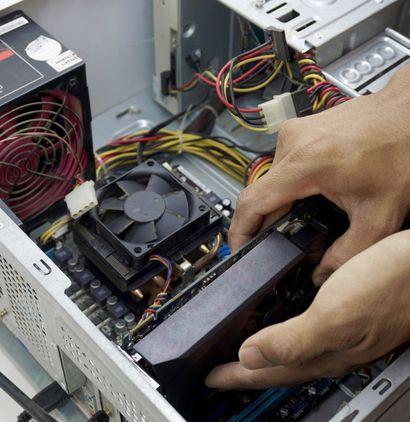
If you're based in Melbourne and your computer has started producing unusual sounds—clicking, grinding, beeping, or whirring—you're not alone. Many Melbourne residents experience this problem, especially as older systems age or when hardware components begin to fail. Strange noises from your PC are rarely just annoying background sounds; they're often early warning signs of serious hardware issues that could lead to data loss, system failure, or costly repairs. Whether you're a home user or run a business that depends on reliable technology, understanding what these sounds mean is essential. This guide will help you identify the source of the problem and determine whether you need professional computer repairs in Fairfield or can address the issue yourself.
Common PC Noises and What They Mean
Grinding or Clicking Sounds
One of the most concerning sounds your PC can make is a grinding or repetitive clicking noise. This typically indicates a hard drive failure in progress. Modern hard drives contain spinning platters and read/write heads that move across them at extremely high speeds. When you hear clicking, scratching, or grinding sounds, the read/write head may be hitting the platter surface—a situation known as a "head crash." This is a critical problem that demands immediate attention.
High-Pitched Whining or Squealing
A high-pitched noise, often described as whining or squealing, usually comes from fans working overtime or a power supply under strain. This sound suggests that your system's cooling system is struggling, and components are overheating. Over time, this can damage your processor, graphics card, or motherboard.
Loud Fan Noise
If your fans sound like a jet engine, it's a sign that internal temperatures are rising and your cooling system is working hard to compensate. While fans can be naturally loud, a sudden increase in noise level indicates something is wrong.
Continuous Beeping
Beeping sounds during startup or during operation are often diagnostic signals from your BIOS (Basic Input/Output System). Different beep patterns indicate different problems, from RAM issues to motherboard faults.
Buzzing or Vibration Sounds
Low-frequency buzzing might indicate a loose component inside your case, a failing power supply, or a component resonating at a particular frequency. While sometimes harmless, it's worth investigating.
Why These Problems Occur
Dust Accumulation and Poor Ventilation
Melbourne's climate, combined with dust in our environment, can cause significant buildup inside your computer. Dust blocks airflow and forces fans to work harder, leading to overheating and excessive noise. Over months or years, this accumulation can be substantial.
Hardware Aging
Components have lifespans. Hard drives typically last 3-5 years under normal use. Fans wear down, capacitors in power supplies deteriorate, and mechanical parts gradually degrade. As your PC ages, these components eventually fail.
Manufacturing Defects
Sometimes hardware arrives with defects that only manifest after a period of use. A fan bearing might wear prematurely, or a component might be slightly misaligned from the factory.
Thermal Issues
Poor cooling design, inadequate thermal paste, or a failed cooler can cause critical components to overheat, triggering fans to spin faster and produce more noise.
Electrical Problems
Power supply issues can cause buzzing or humming sounds as capacitors fail or voltage regulation problems develop.
Practical Solutions and Expert Tips
Step 1: Listen Carefully and Document
Before taking action, identify exactly where the sound is coming from. Is it from the front, back, or inside the case? Is it constant or intermittent? Record the sound on your phone if possible. This information helps when seeking professional computer repairs in Fairfield—technicians can diagnose problems more quickly with accurate descriptions.
Step 2: Shut Down Immediately (For Critical Sounds)
If you hear clicking, grinding, or beeping during startup, shut down your PC immediately. These sounds often indicate imminent hardware failure. Continuing to use the system could worsen the damage and result in complete data loss.
Step 3: Clean Your Computer
If the noise sounds like loud fan activity, your system likely needs cleaning. Here's what to do:
- Power off completely and unplug the system
- Remove the side panel of your case (ensure you're grounded to avoid static discharge)
- Use compressed air to blow dust from fans, heatsinks, and internal components
- Pay special attention to air intake and exhaust areas
- Reinstall the panel and test
This simple maintenance often resolves fan noise issues and improves overall system performance.
Step 4: Check Fan Health
Open your system monitor or BIOS to check fan speeds and temperatures. If fans are spinning at maximum speed while your PC is idle, something is wrong. Ensure all fans are spinning freely and not obstructed.
Step 5: Monitor Temperatures
Use free monitoring software like HWiNFO or Core Temp to check your CPU, GPU, and hard drive temperatures. If temperatures are consistently above 80°C, your cooling system needs attention.
When Professional Help is Needed
You should seek professional computer repairs in Fairfield if:
Hard drive failure is suspected — Clicking or grinding sounds indicate imminent hard drive failure. A professional can recover your data before complete failure occurs.
Multiple sounds are occurring — If your PC is making several different noises simultaneously, multiple components may be failing.
Temperatures are critical — If temperatures exceed 90°C despite cleaning, a component like your cooler may need replacement.
The problem persists after cleaning — If fan noise continues after you've cleaned the system, a fan bearing may be worn out.
Your system is overheating and shutting down — Automatic shutdowns due to heat indicate serious cooling problems.
You're uncomfortable opening your PC — If you're not confident working inside your computer, professional service prevents accidental damage.
Conclusion
Strange noises from your PC are your computer's way of asking for help. While some issues like dust accumulation can be resolved with basic cleaning, others demand professional attention. The key is acting quickly—ignoring these warning signs often leads to more serious problems and higher repair costs. By listening carefully to what your computer is telling you and addressing problems promptly, you can extend your system's lifespan and protect your valuable data. If you've tried basic troubleshooting and the sounds persist, don't hesitate to contact experienced professionals who can diagnose and fix the underlying issues. Your PC will thank you, and so will your wallet in the long run.

 Arabic
 French
 Spanish
 Portuguese
 Deutsch
 Turkish
 Dutch
Dutch
 Italiano
 Russian
 Romaian
 Portuguese (Brazil)
 Greek
Greek