


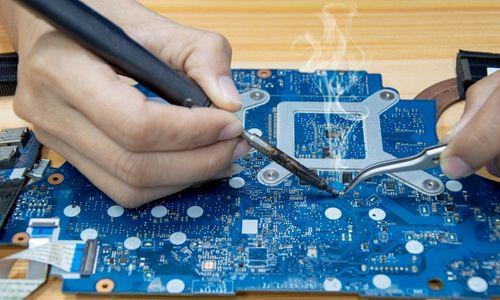
If you're a Mac user in Melbourne's Malvern area—or anywhere in Victoria—experiencing unexpected shutdowns, you're not alone. Random power-offs can be incredibly frustrating, especially when you're in the middle of important work or creative projects. What makes this issue particularly common in our region is the combination of factors unique to Melbourne's climate and the age of many devices in Malvern households and small businesses. Whether your Mac is suddenly shutting down without warning or restarting on its own, understanding the root cause is the first step toward reliable Mac Repairs Malvern solutions. This guide covers the most common reasons behind these frustrating shutdowns and practical fixes you can try before seeking professional services.
Common Problems That Cause Random Mac Shutdowns
Unexpected Restart Loops
Your Mac might be stuck in a cycle where it powers off and immediately restarts. This is different from a graceful shutdown and often indicates deeper software or hardware conflicts.
Complete Power Loss Without Warning
Sometimes your Mac simply goes dark without any warning dialogue or shutdown sequence. One moment you're working, the next moment your screen is black.
Shutdown During Intensive Tasks
Your Mac might run fine during light use but suddenly power off when you're running video editing software, processing large files, or gaming. This pattern often points to thermal or power management issues.
Intermittent Shutdowns at Random Times
The most unpredictable scenario: your Mac shuts down sporadically, sometimes once a week or multiple times daily, with no apparent trigger.
Why These Problems Occur
Thermal Throttling and Overheating
Macs are designed to shut down automatically when internal temperatures become dangerous. Melbourne's climate, particularly during summer months, combined with blocked vents or dust accumulation, can cause your Mac to overheat. If your fan is working overtime or your device feels hot to the touch, thermal issues are likely the culprit.
Battery and Power Management Issues
An aging or failing battery is one of the most common reasons for random shutdowns. If your Mac is several years old, the battery may no longer hold a charge effectively, causing the system to shut down when it thinks power is critically low—even if you're plugged in.
Insufficient Storage Space
When your Mac's drive is nearly full, the operating system can't access the temporary storage it needs to function properly. This triggers unexpected shutdowns as a protective measure to prevent data corruption.
Outdated macOS and Software Conflicts
Running older versions of macOS or incompatible applications can create conflicts that cause system instability. Each macOS update includes stability improvements and security patches that often resolve shutdown issues.
Failing Hard Drive or SSD
A deteriorating storage drive can cause random shutdowns as the system struggles to read or write data. Warning signs include slow performance, clicking sounds, or frequent spinning wheel delays.
Power Supply Problems
For iMacs, Mac minis, or MacBook Pros with external adapters, a faulty power supply might not be delivering consistent power, triggering unexpected shutdowns.
Water Damage or Physical Damage
Melbourne's humidity and occasional flooding in certain areas can lead to moisture inside devices. Even minor water exposure can cause intermittent electrical problems and random power-offs.
Practical Solutions and Expert Tips
Step 1: Check Your Mac's Storage
Open About This Mac (Apple menu > About This Mac > Storage). If your drive is more than 90% full, delete unnecessary files or applications. Aim to keep at least 15–20% of your drive free for optimal performance.
Step 2: Update Your macOS
Go to System Settings > General > Software Update. Installing the latest macOS version often resolves stability issues and shutdown problems caused by software bugs.
Step 3: Monitor Your Mac's Temperature
Download a free tool like Macs Fan Control or iStat Menus to check your CPU temperature. Normal operating temperature is between 40–60°C. If it's consistently above 80°C, your Mac is overheating.
Step 4: Clear Dust and Improve Ventilation
Dust buildup is particularly problematic in Malvern due to our dry seasons. Use compressed air to gently clean your Mac's vents and ensure it's placed on a hard, flat surface with clear airflow around it. Never use your Mac on a bed or cushion, as these block vents.
Step 5: Reset the SMC (System Management Controller)
The SMC controls power management, battery function, and thermal behavior. Resetting it often resolves shutdown issues. For MacBook models with Apple Silicon (M1, M2, M3), simply shut down and wait 30 seconds before restarting. For older models, the process varies—consult Apple's official documentation for your specific model.
Step 6: Run Disk Utility Diagnostics
Restart your Mac in Safe Mode (hold Shift while restarting), then run Disk Utility to scan for drive errors. This helps identify if your storage device is failing.
Step 7: Disable Power-Saving Features Temporarily
Go to System Settings > Power Saver and check if aggressive power-saving settings might be causing issues. While you troubleshoot, you can disable some of these features.
When Professional Help Is Needed
If you've tried these steps and your Mac continues shutting down randomly, it's time to seek professional Mac Repairs in Malvern. A qualified technician can:
- Test your battery and power supply with specialized equipment
- Diagnose hard drive or SSD failures
- Identify motherboard or logic board issues
- Check for water damage or corrosion
- Replace failing components
Additionally, if your Mac is making unusual sounds, showing signs of physical damage, or shutting down during every use, professional diagnosis is worthwhile. Attempting DIY repairs on complex hardware can void warranties or cause further damage.
Conclusion
Random Mac shutdowns are frustrating, but they're usually fixable. Start with the software and maintenance solutions outlined here—checking storage, updating macOS, monitoring temperature, and cleaning vents often resolve the issue without additional cost. Melbourne's climate and the age of many devices in Malvern mean that thermal and battery issues are particularly common, so prioritize checking these areas first. If your troubleshooting doesn't work, don't despair. A local professional can diagnose the problem accurately and get you back to work quickly. The key is addressing the issue promptly—the longer you wait, the more risk you run of losing important data or causing secondary damage to other components.

 English
 Arabic
 French
 Portuguese
 Deutsch
 Turkish
 Dutch
Dutch
 Italiano
 Russian
 Romaian
 Portuguese (Brazil)
 Greek
Greek